
Config Cloudflare Tunnel
17 tháng 11, 2024
0. Kích hoạt Cloudflare Tunnel (Zero Trust)
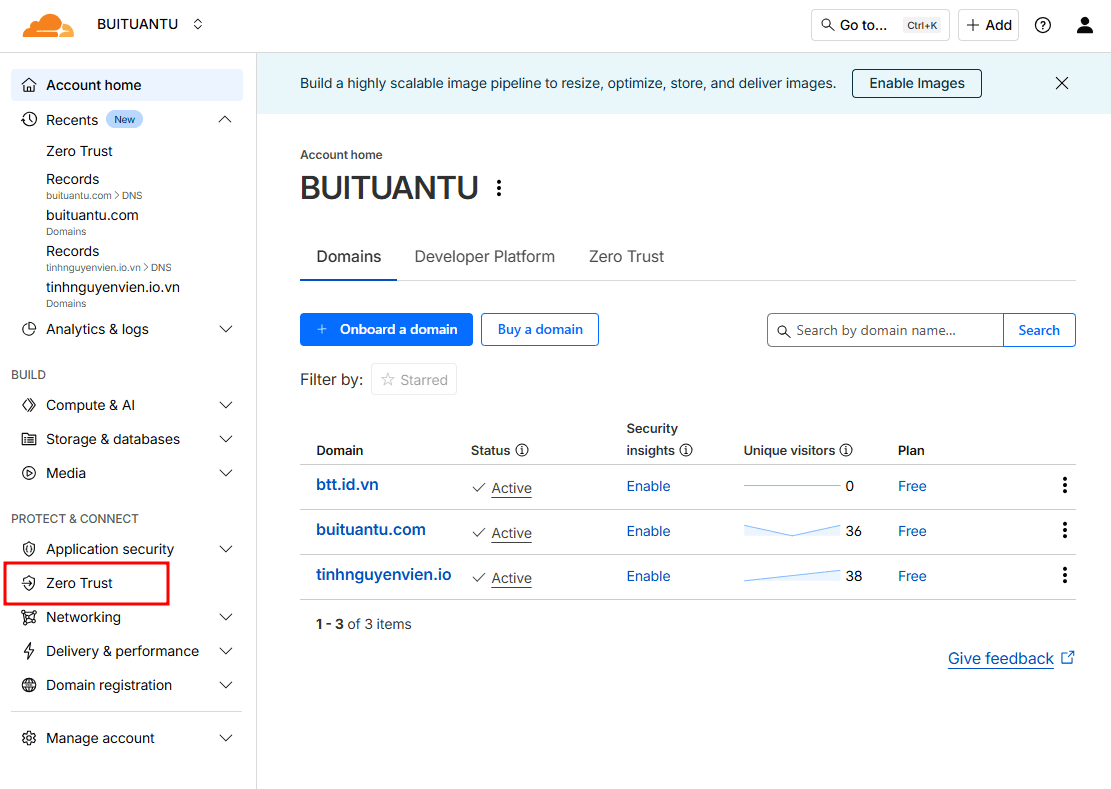
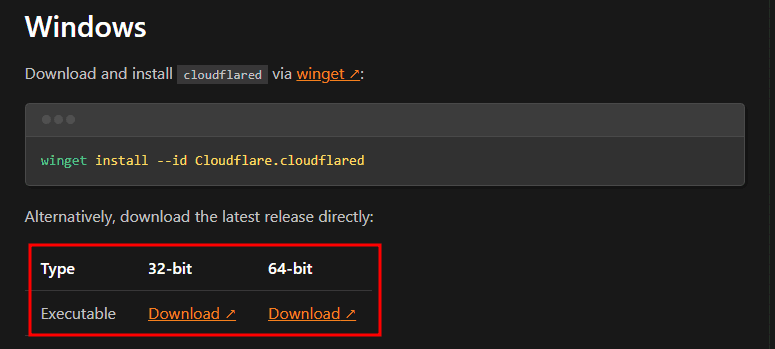
1. Tải xuống công cụ
- Truy cập trang tải: Downloads · Cloudflare One docs
- Chọn đúng nền tảng của bạn.
2. Thiết lập biến môi trường
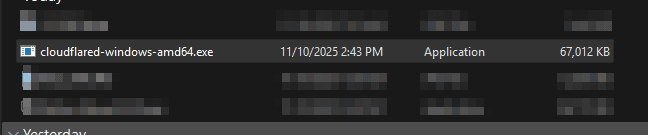
- Đổi tên file
cloudflared-windows-amd64.exethànhcloudflared.exe. - Di chuyển file vào
C:\Program Files\Cloudflare\cloudflared\cloudflared.exe. - Thêm đường dẫn vào biến môi trường
PATHcủa hệ thống:
[Environment]::SetEnvironmentVariable(
  "PATH",
  $env:PATH + ";C:\Program Files\Cloudflare\cloudflared",
  [EnvironmentVariableTarget]::Machine
)
3. Kiểm tra cài đặt
cloudflared --version
Ví dụ kết quả thành công:
PS C:\WINDOWS\system32> cloudflared --version
cloudflared version 2025.10.1 (built 2025-10-30T14:56 UTC)
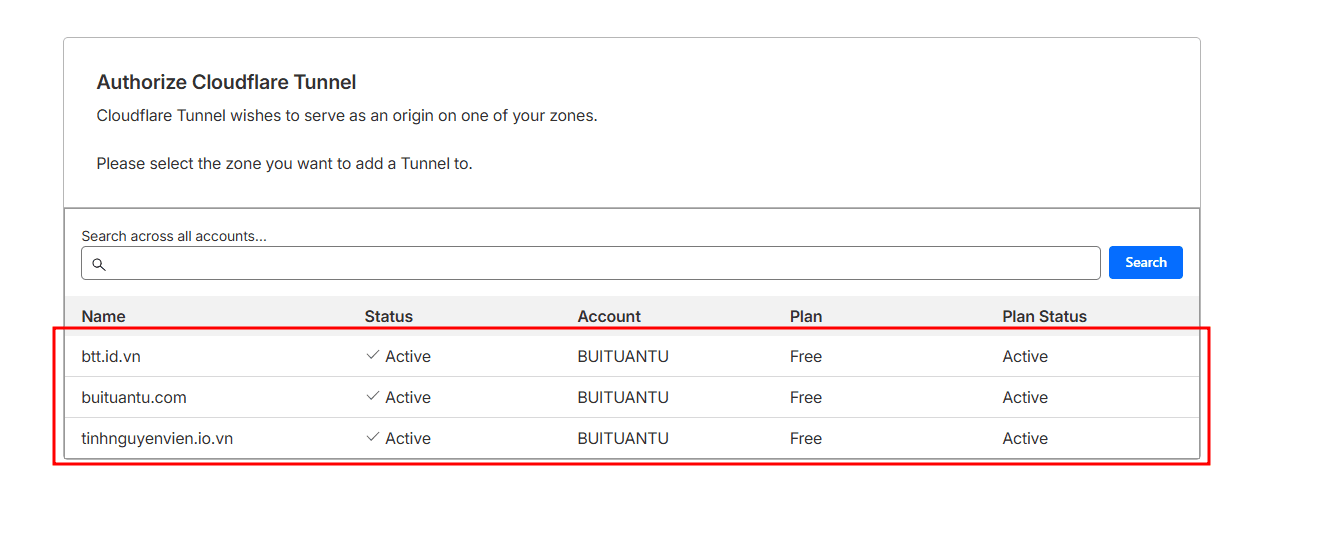
4. Đăng nhập và chọn domain
cloudflared login
- Lệnh mở trình duyệt để đăng nhập và chọn domain.
- Sau bước này, Cloudflare sinh file
cert.pemtạiC:\Users\<username>\.cloudflared.

Tạo thêm file config.yml với nội dung mẫu:
tunnel: <tunnel-id>
credentials-file: C:\Users\buituantu\.cloudflared\<tunnel-id>.json

ingress:
  # Backend API (.NET)
  - hostname: api.tinhnguyenvien.io.vn
    service: http://localhost:5000

  # Frontend (Angular)
  - hostname: tinhnguyenvien.io.vn
    service: http://localhost:4200

  # Mặc định:
  - service: http_status:404
Ghi chú:
tunnel-idsẽ được tạo ở bước tiếp theo và cần điền vào cảtunnellẫncredentials-file.
5. Tạo tunnel
cloudflared tunnel create <TEN_TUNNEL>
Ví dụ:
cloudflared tunnel create buituantu-tunnel
Kết quả mẫu:
PS C:\WINDOWS\system32> cloudflared tunnel create buituantu-tunnel
Tunnel credentials written to C:\Users\buituantu\.cloudflared\0bde6ece-b2a0-4f38-be68-6901ed2cfbde.json. cloudflared chose this file based on where your origin certificate was found. Keep this file secret. To revoke these credentials, delete the tunnel.

Created tunnel buituantu-tunnel with id 0bde6ece-b2a0-4f38-be68-6901ed2cfbde
Sau khi nhận tunnel-id, cập nhật lại file config.yml.
6. Gắn domain vào tunnel
cloudflared tunnel route dns <TEN_TUNNEL> <DOMAIN>
Nếu trong config.yml có hai domain api.tinhnguyenvien.io.vn và tinhnguyenvien.io.vn, chạy hai lệnh:
cloudflared tunnel route dns tinhnguyenvien-tunnel tinhnguyenvien.io.vn
cloudflared tunnel route dns tinhnguyenvien-tunnel api.tinhnguyenvien.io.vn
Cloudflare sẽ trả về thông báo Added CNAME ... khi thành công.
7. Khởi chạy code và tunnel
- Đảm bảo ứng dụng backend/frontend đang chạy đúng cổng đã khai báo trong
config.yml(ví dụ 5000 và 4200). - Sau đó chạy:
cloudflared tunnel run tinhnguyenvien-tunnel
Lưu ý: Khi triển khai, hãy cập nhật cấu hình frontend để gọi đúng endpoint backend trên domain public. Nếu frontend vẫn trỏ về
localhost, người dùng bên ngoài sẽ không gọi được API.
8. Các lệnh hữu ích khác
-
Kiểm tra thông tin tunnel
powershellcloudflared tunnel info <TEN_TUNNEL> -
Liệt kê toàn bộ tunnel
powershellcloudflared tunnel list -
Xóa tunnel (đồng thời xóa file .json)
powershellcloudflared tunnel delete <TEN_TUNNEL> -
Cài đặt tunnel chạy như service
powershellcloudflared service install -
Cập nhật và kiểm tra phiên bản
powershellcloudflared update cloudflared --version -
Kiểm tra kết nối DNS
powershellnslookup tinhnguyenvien.io.vn -
Xóa cấu hình/credential cũ
powershellrd /s /q "C:\Users\<user>\.cloudflared" -
Test nhanh một domain mà không cần tạo tunnel
powershellcloudflared tunnel --url http://localhost:4200
Chỉ với chuỗi bước trên, bạn đã có thể dựng Cloudflare Tunnel, ánh xạ domain và chia sẻ môi trường nội bộ ra internet một cách an toàn.